📦 Never Lose a Collage Again – Explore Our Auto-Backup Feature for VIP!
Amelia
Updated
Worried about losing your creative collages after reinstalling PicCollage app, switching devices, or forgetting to manually back them up to PicCollage Cloud? Don’t worry—our handy Auto Backup feature is here to help, exclusively for all VIP users!
What is the Auto-Backup feature?
Once enabled, this feature will automatically back up each new collage to PicCollage Cloud.
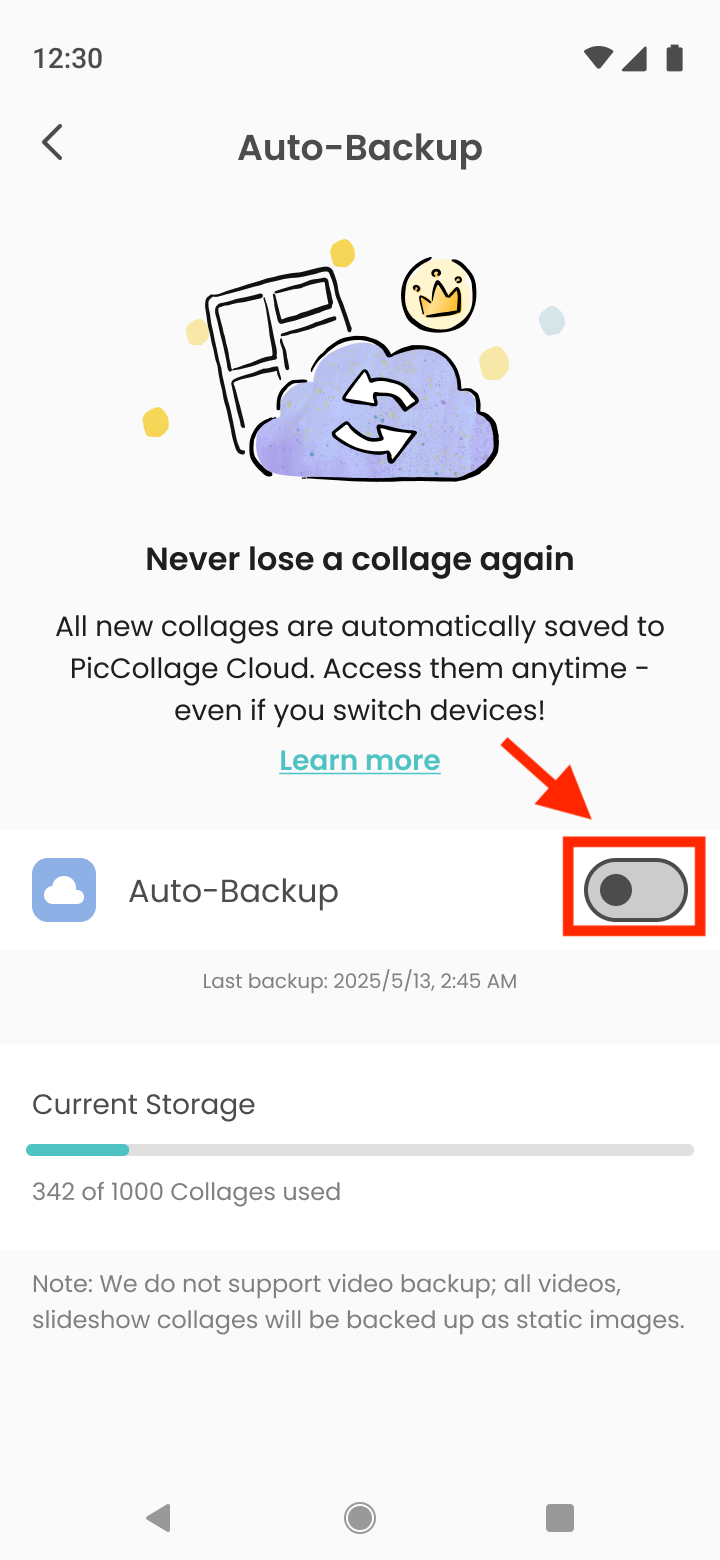
PicCollage Cloud is a storage space where you can back up your saved collages—with up to 1,000 collages allowed for our VIP members. It helps keep your creations safe and frees up storage on your device.
Requirements to Use the Auto-Backup Feature in PicCollage
To use the Auto-Backup feature, please ensure the following:
Create a PicCollage Account:
You’ll need a PicCollage account to access PicCollage Cloud
Note: Your PicCollage account is separate from your VIP subscription. Please make sure you've created an account. For detailed steps, see this article:Account: Sign Up and Log In
Activate a VIP Subscription
A VIP subscription is required to use Auto-Backup.
Make sure your device is connected to the internet and that the connection is stable during the backup process.
How to enable/ disable the Auto-Backup Feature
You can turn the Auto-Backup feature on or off anytime based on your personal preferences!
To Enable Auto-Backup:
Option 1: From the“My Collages” Page
Go to the“My Collages” section from the home page
Tap the blue button“Enable Auto-Backup” in the banner at the top
Option 2: From the Settings Menu
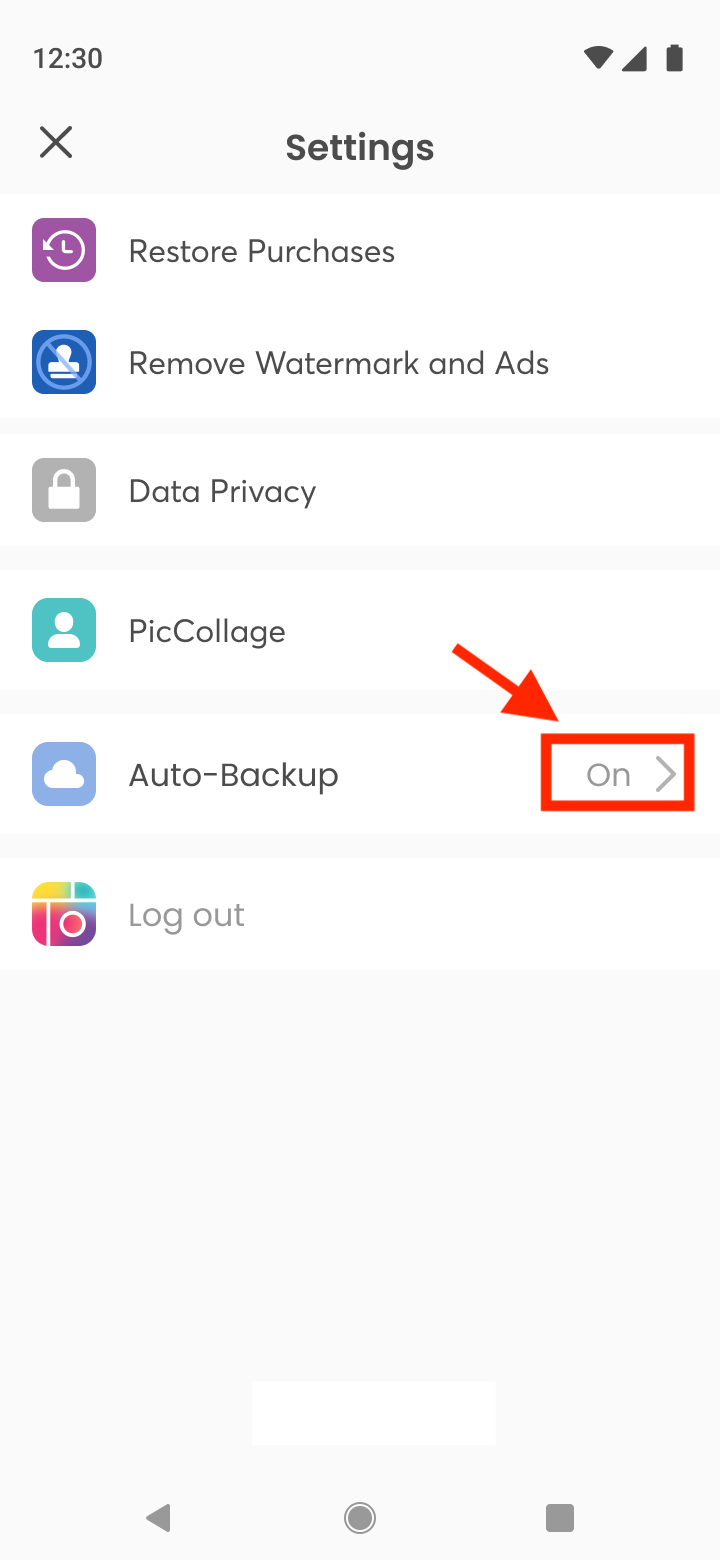
Tap the ≡(menu) icon at the top left of the home page
Tap Settings, then select Auto-Backup
Toggle the switch to enable the Auto-Backup feature
To Disable Auto-Backup:
Tap the ≡(menu) icon at the top left of the home page
Tap Settings, then select Auto-Backup
Toggle the switch to disable the Auto-Backup feature
Note: Auto-Backup will be automatically disabled once the number of backed-up collages reaches 1,000 — the maximum limit for our VIPs.
How does it work?
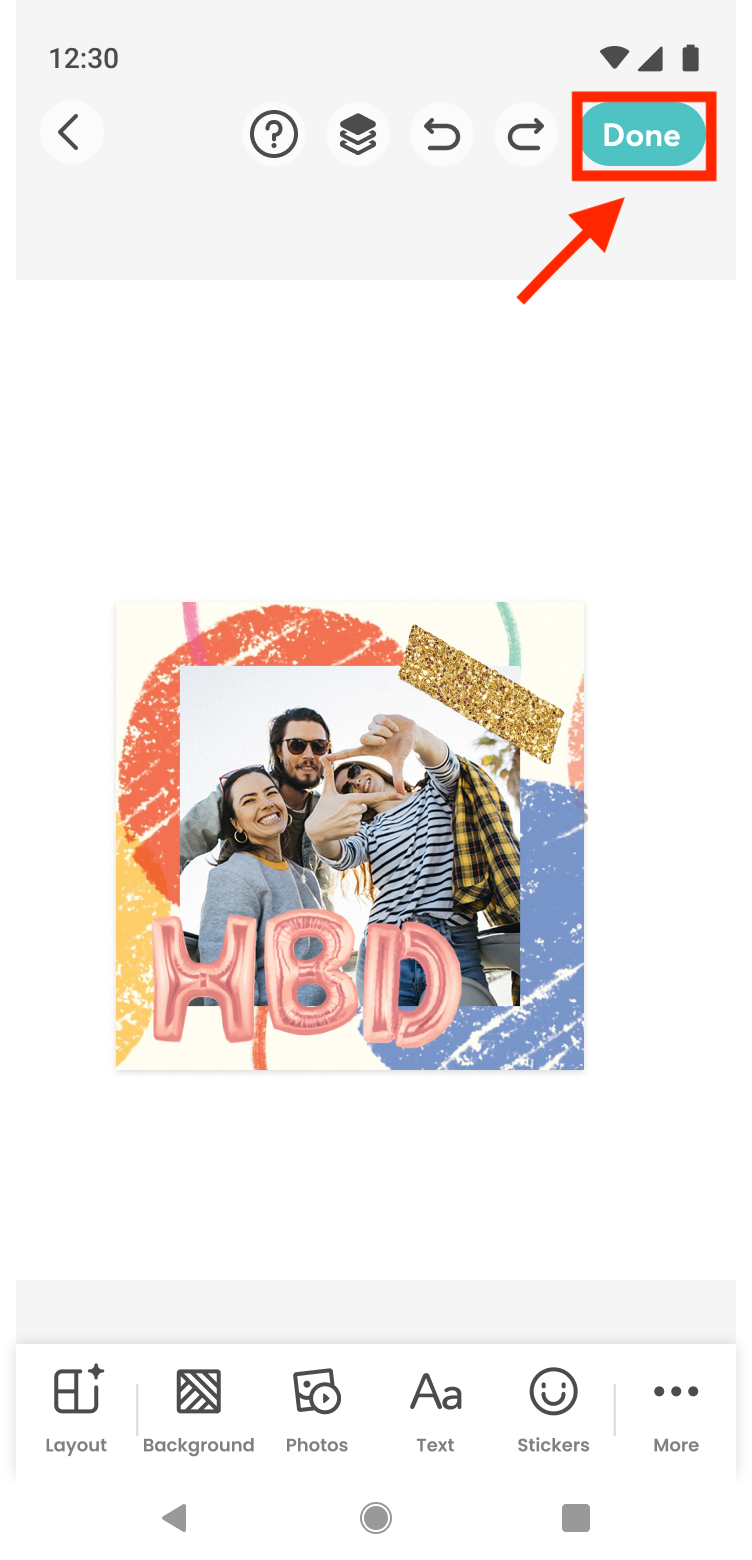
After you tap the“Done” button in the collage editor to finish your creation, the collage will be automatically backed up to PicCollage Cloud.
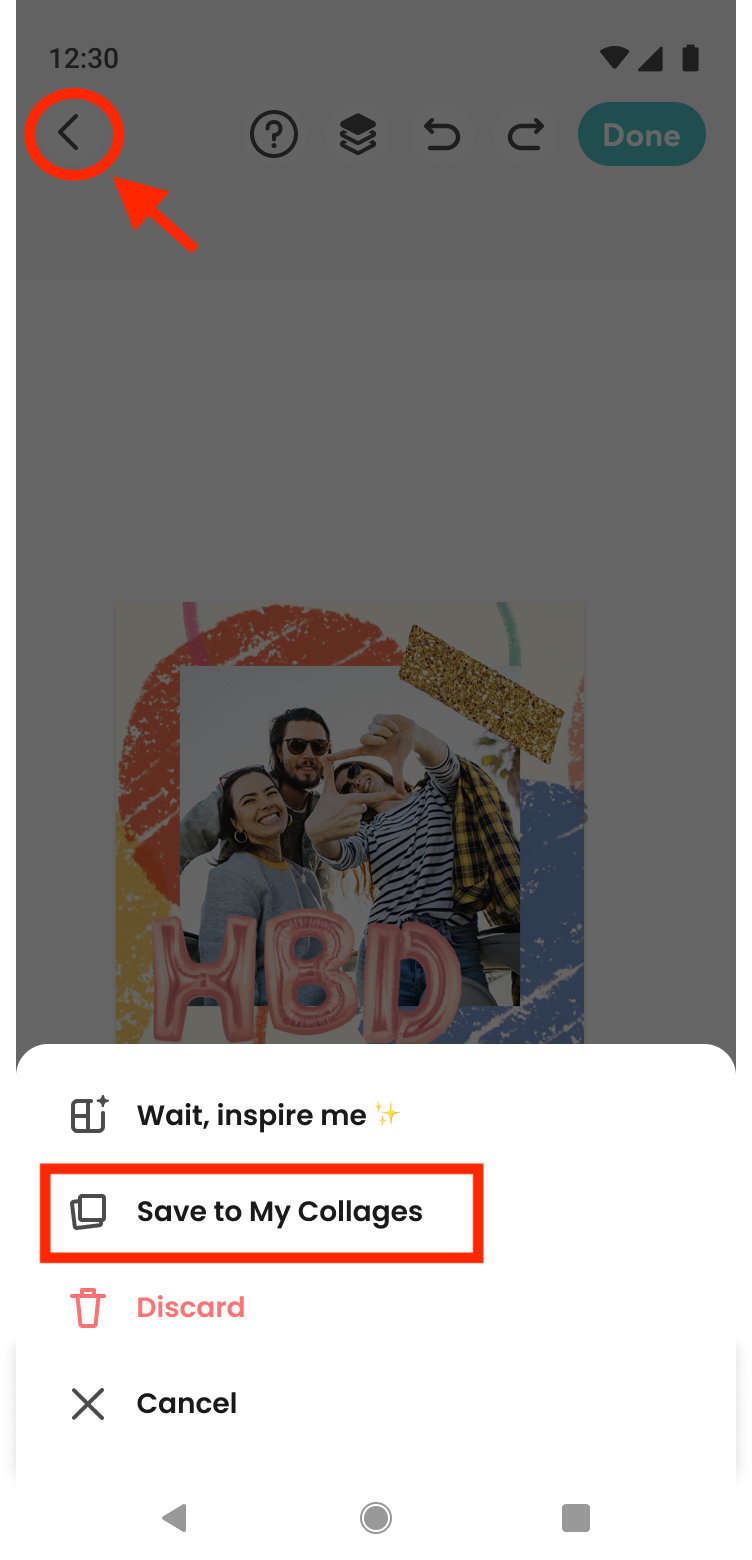
Alternatively, you can also trigger the auto-backup by tapping the back arrow in the top left corner of the editor and selecting“Save to My Collages.”
2. To check the backup progress, go to the “My Collages” page by tapping the icon in the bottom left corner of the home screen.
There, you’ll be able to see the backup progress for each collage. A collage has been successfully backed up once the “Cloud” status appears beneath it.
We hope you enjoy using the Auto-Backup feature and creating even more unique collages!
Please refer to our Privacy Policy to learn more about how your data is protected, and feel free to contact us if you have any additional questions!
You can contact our support team directly through the app. For detailed instructions on how to reach us, please see this article: Contact the PicCollage Team!